Appearance
Users
The Users page provides an overview of all the active accounts and their roles in a selected location. It is only accessible to users with Admin account privileges.
See example

Users Management
Go to the Users page from the settings Configuration Menu, located in the top-right corner.
You can view, create, deletedelete users for a selected location. When you change a location, the users list will refresh automatically.
You can also filter the list using of the filter_alt tools available or use the View toggle to control what you want to see/hide in the list.
Adding a user
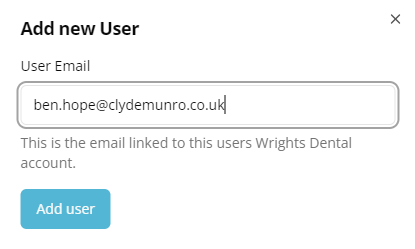
On the Users page, click Add.
Enter the user's email address.
Click Add user.
See example
Important
When adding new user use the email address linked to their Wrights Dental account.
Removing a user
Click the more_horiz actions button, then click Remove User.
Once removed, the user will no longer have access to this location.
See example

Note
If a user is assigned to more than one location, that user will still have access to other locations.